Whether you have a video that exceeds Instagram or TikTok's maximum length requirements or you've failed to send a video file because the video is too long(large), cutting the long video to short can help!
The common way to reduce the duration of a video is to trim off a few seconds from the beginning or end of your video to keep the funniest part of it or try to cut parts out of the middle of your video to turn the long video to a short one.
But some times you may need to make a video shorter without cutting to keep it in the same material as the original ones. Is there a way to make a video shorter without cutting?
Of course YES! Here in this blog, we'll share an online video shorter to help you shorten a video without cutting and reduce the time of a video with more easy ways, such as cut video with AI. Keep reading and find more!
Contents:
Editable Templates for Your Short Video Inspirations
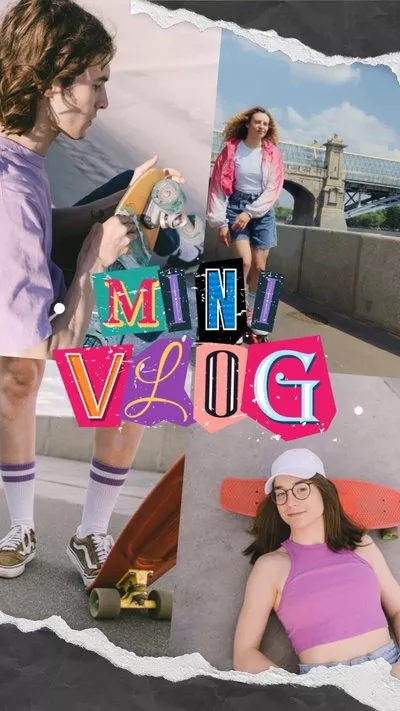
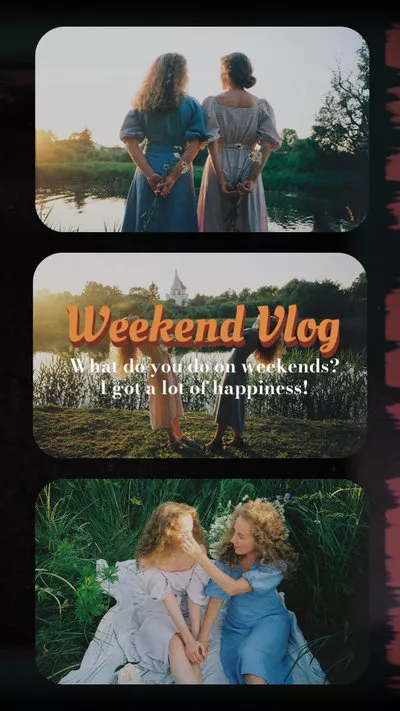
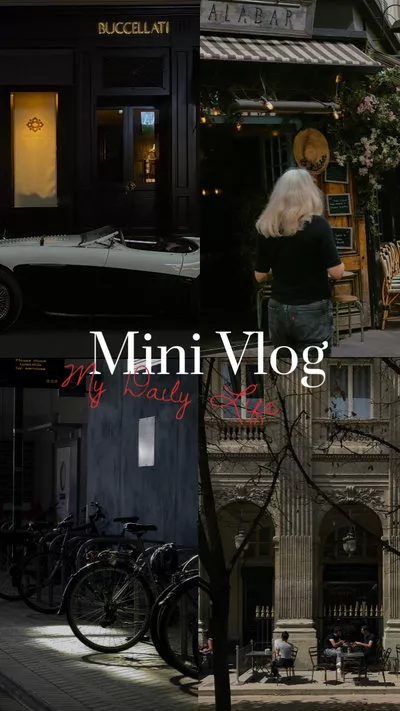
Create Video Faster with FlexClip's Pre-Made Templates →
Start from Scratch Easily with FlexClip's Online Video Maker →
Also Read: How to Make a Video Longer for Instagram & Other Social Platforms >
Part 1 Introducing the Online Video Shorter to Reduce Video Time - FlexClip
To help you shorten video length without cutting, we'll use a powerful online video shorter, FlexClip, which is a perfect tool helping tons of users make their video to the perfect length in simple clicks.
Whether you're trying to reduce the video time by cutting it to a short one - trimming the beginning or ending of a video, cutting middle parts out of your video - or even want to shorten a video without cutting, FlexClip meets all your needs!
By the way, the best thing about this online video shorter is that it helps you do so much more than shorten a video with its additional powerful editing tools, such as combine your Zoom recordings, edit any screen recording video, add facecam to video, transcribe video to text, and make more cool edits to make professional-looking videos for YouTube, Instagram stories, or any social media platform.


Create Stunning Projects with FlexClip AI Video Maker
Part 2 How to Make a Video Shorter Without Cutting Using FlexClip
Now, let's turn to FlexClip to make your video shorter and also level up your footage with its powerful editing functions. Get started now!
FlexClip can help you easily shorten a video length without cutting with its powerful speed changer. Check out the simple steps below to learn how to reduce duration of video and make it shorter without cutting by speeding up your video.
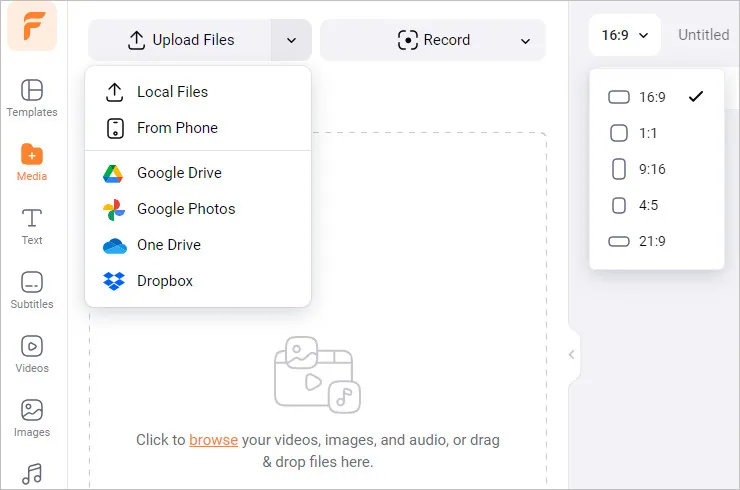
Make a Video Shorter without Cutting - Upload
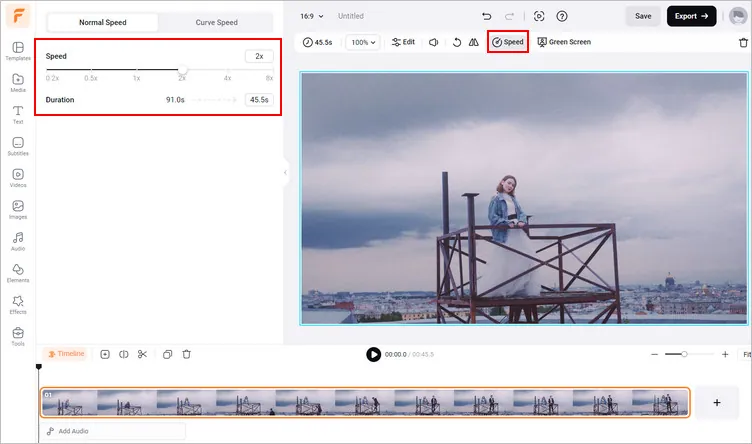
Make a Video Shorter without Cutting - Speed up
Here, you can also try its speed curve feature, which helps you gradually change the speed of your video clip and reduce the duration of your video while give it a dramatic pace. Try preset curves like Montage, Hero Time, and Jump Cut or customize a new curve to make a long video to short one and make it an impressive one.
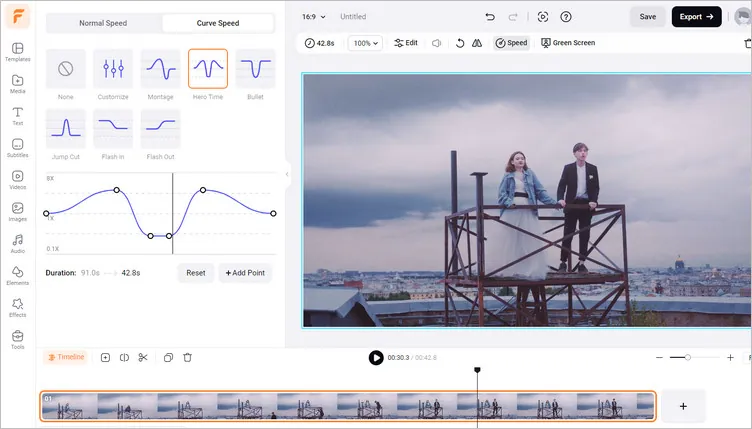
Reduce the Duration of Video without Cutting Using Speed Curve Feature
While you're in FlexClip video editor, besides making a video shorter, you can use FlexClip's tools to make any other edits you'd like to your video:
- Resize a landscape video to portrait for YouTube Shorts, TikTok, or Instagram Reels;
- Add & edit text animation, generate subtitles or captions automatically;
- Add transition effects, filters, intro and outro to the video;
- Add watermark, effect overlays, voice over & ai text-to-speech narration;
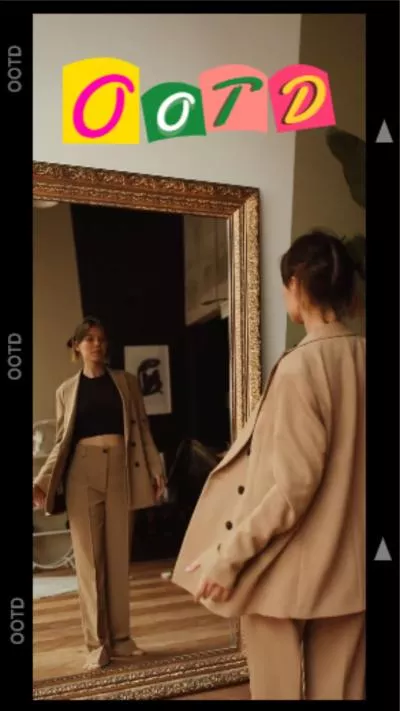
Also, you can make a stunning video with FlexClip's pre-made video templates:




Part 3 More Ways to Make a Video Shorter Online with FlexClip
Prefer to make your video shorter simply by trimming or cutting? FlexClip also allows you to reduce video time in simple clicks with its easy trimmer and advanced text-based video editor. Keep reading to learn how below.
How to Edit Transcript to Cut and Shorten the Video with AI
First, let's go with the most smart way. Using FlexClip's AI Text-Based Editor to cut and trim your video to the desired length es easy as text editing, which helps you convert spoken words in your video into editable text, then you can edit videos just like editing a document - delete the text, and the video will be trimmed accordingly.
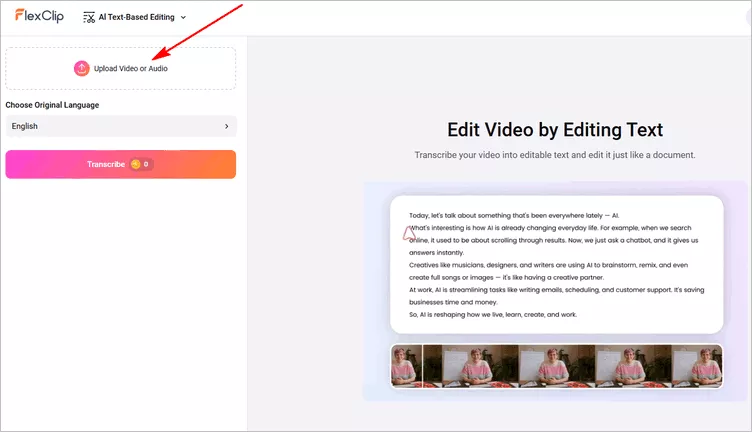
Make a Video Shorter with AI Text-based Editor - Upload
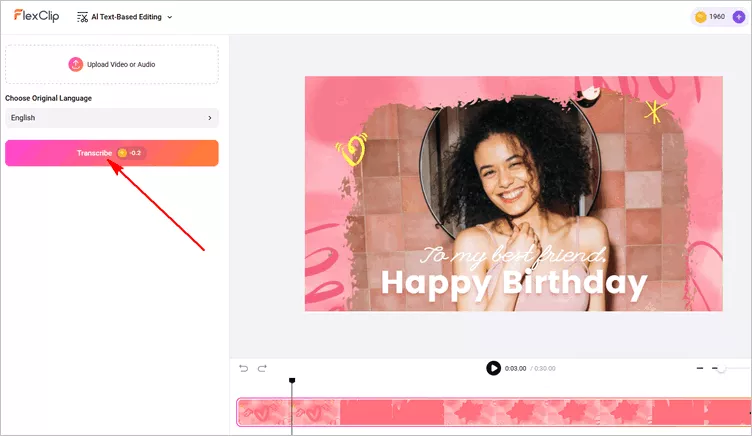
Make a Video Shorter with AI Text-based Editor - Transcribe
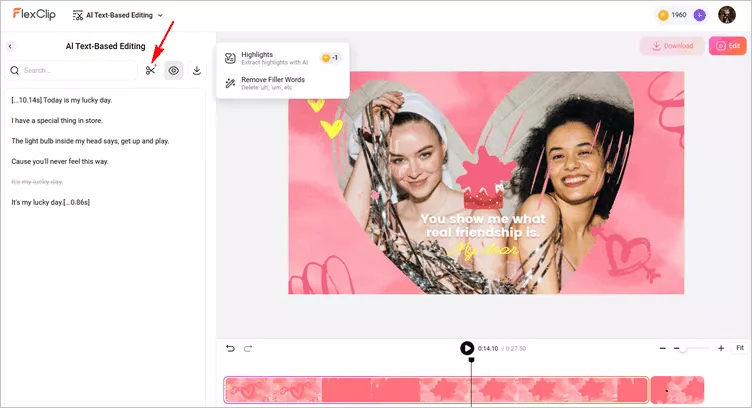
Make a Video Shorter with AI Text-based Editor - Edit and Cut
How to Trim off the Beginning or End to Shorten the Video
Then common way to cut a long video to short is trimming off the beginning or end of the video. FlexClip's trim tool help you to do so with great ease.
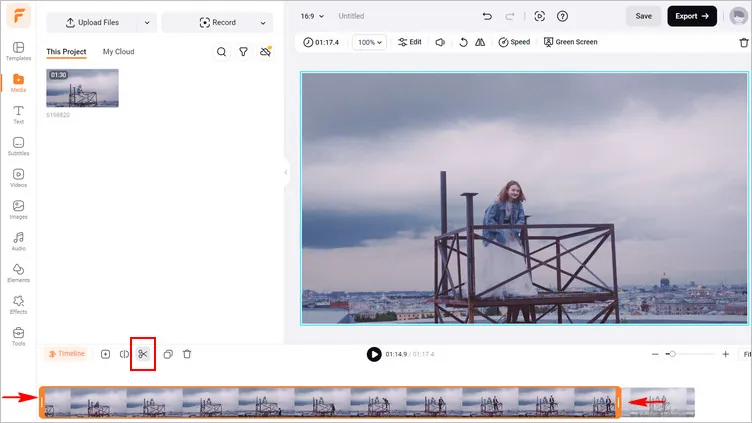
Make a Video Shorter - Trim
How to Split and Cut Middle Parts out to Shorten the Video
You can also shorten your video with the split feature of FlexClip. This way can help you remove the unwanted part in the middle of the video to reduce the overall duration easily.
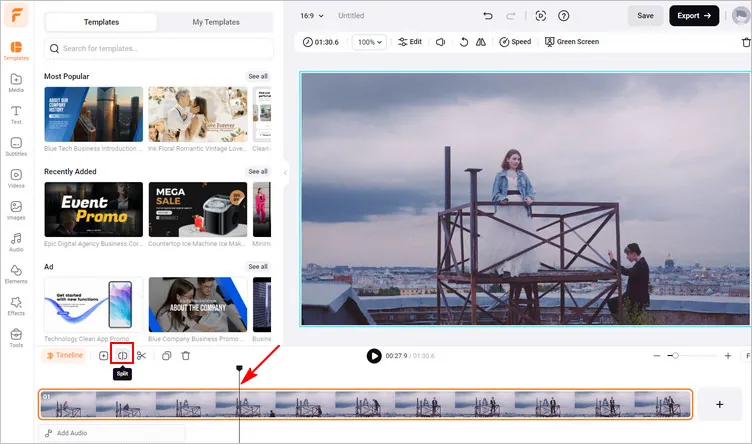
Make a Video Shorter - Split and Cut Parts out
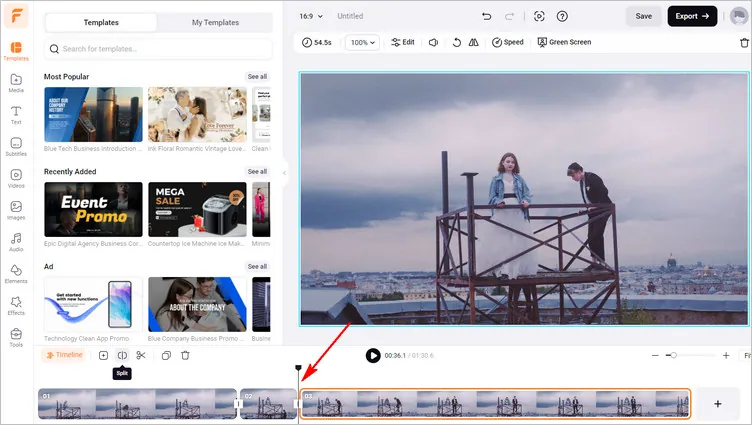
Make a Video Shorter - Split and Cut Parts out
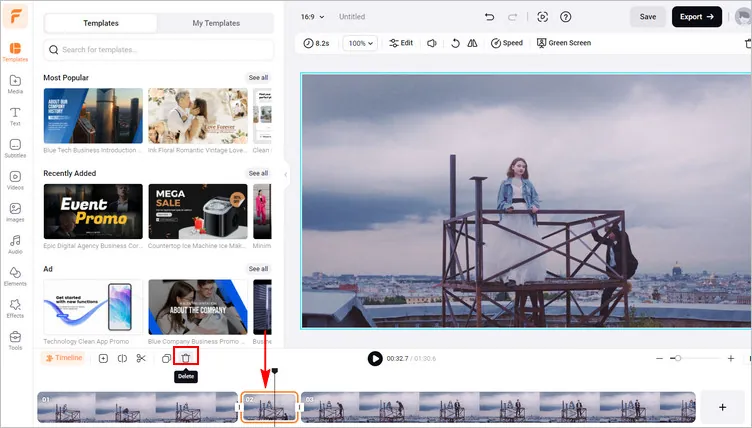
Make a Video Shorter - Delete
Final Words
That's all for how to make a video shorter online in three different ways. Follow the steps in this tutorial for the step-by-step on how to use the FlexClip's tool to make a video shorter without cutting, shorten a video by trimming or AI text-based editor, or make a video shorter by splitting and cutting right now!




FlexClip AI Video Maker
Reach professional-quality videos faster with easy editing tools, templates, and smart AI.
Start Now for Free
Hot & Trending
-

Best Ways to Find Music in YouTube Videos
-

Instagram Story Video Quality Bad After Upload? Fix It!
-

How to Repost Video on TikTok & How to Remove TikTok Repost
-

Improve Video Quality Online: 3 AI Video Quality Enhancers You Can't Miss
-

4K Convert to HD 1080p without Watermark: Best 4k Video Converters
-

Best 8 Free Video Editors - No Download Required
-

Top 13 Birthday Video Makers with Music and Effects Free
-

How to Search Filters on TikTok & Use a Filter You See - TikTok Filter Guide