


A full two-hour of a recorded meeting relevant in its entirety, again! How time-consuming it is to sift through the entire video to find specific moments! This is where the editing feature comes in handy.
Well, you can trim and edit Google Meet video recordings for simple, time-efficient sharing. Instead of sending the big 2-hour-long recording, you can edit your Google Meet video into shareable snippets.
Follow us and learn how to edit your Google Meet recordings to vite-size snippets of call moments and empower your team to quickly catch up on key meeting take-aways.



Create Video Faster with FlexClip's Pre-Made Templates →
Start from Scratch Easily with FlexClip's Online Video Maker →
Where to Find Your Google Meet Recording
Google Meet recordings are stored in Google Drive. Once you stop the recording on Google Meet, you'll receive a message that tells you the recording will be saved in Google Drive. You can Follow the steps below to find your Google Meet recordings in Google Drive:
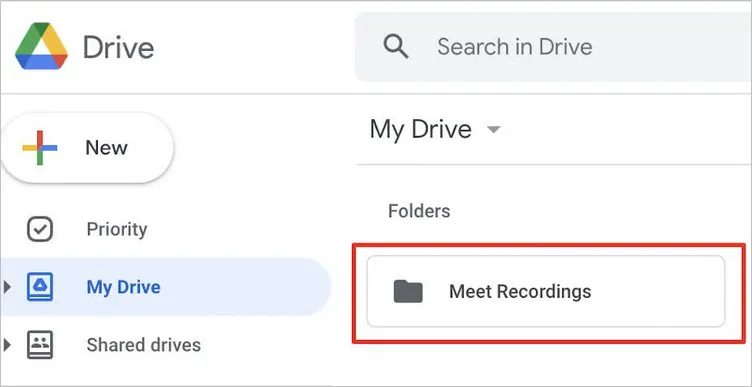
Find the Google Meet Recording
How to Edit Google Meet Recording: Trim, Cut, and More
The common way for you to trim the Google Meet recording or do other edits, you need to download the recorded videos from Google Drive, and then load them from your local folder to a video editing software for edits. But here, we’d like to introduce FlexClip, which seamlessly integrates your Google Drive, allowing you to upload your video recordings from Google Drive directly, which saves you time by eliminating the need to download your Google Meet recorded videos from your Drive and import them manually from your local device.
FlexClip is all you need to edit your Google Meet recording. It helps you access all photos and videos you previously backed up in Google Drive and offers powerful features and effects to trim, cut, and crop a Google Meet video recording and make more edits to turn your meet recording into shareable clip. Below is how FlexClip helps you edit Google Meet recording.
Create Stunning Videos with FlexClip AI Video Maker


Step 1 Add Your Google Meet Recording Videos
Go to the FlexClip editing page, and go to the Media tab to upload your downloaded Google Meet recordings from your computer or directly load the Meet Recording video from Google Drive.
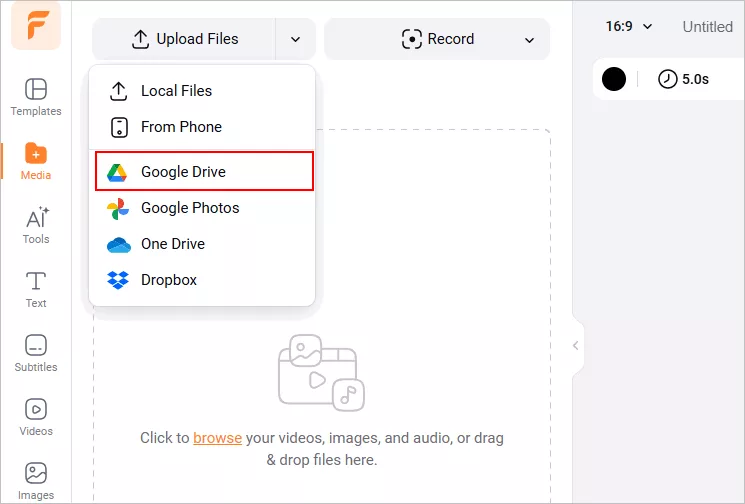
Edit Google Meet Recording - Upload
Step 2 Trim and Cut the Google Meet Recordings
Although you can use FlexClip's trim and split tool to cut the beginning or end of the recording, or cut out any small talks and remove any unwanted parts from the recorded meeting, here we'd like to show you how to use its AI text-based editor to trim and cut your Google Meeting recording with AI.
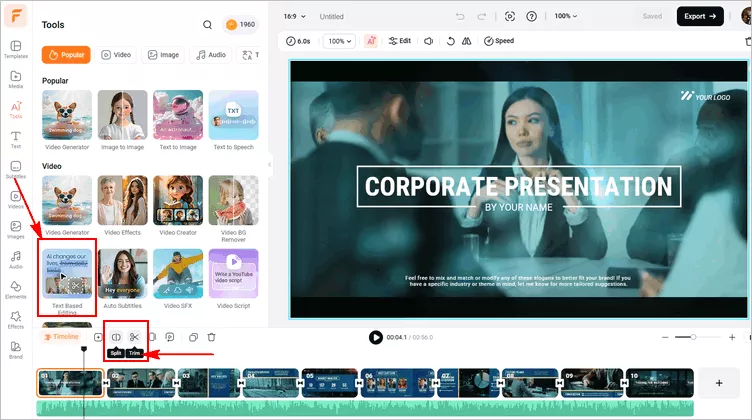
Edit Google Meet Recording - Trim and Split
Simply go to the AI Tools tab and select the Text Based Editing tool, then add your Google Meet recording for a quick and smart AI edit, just click the Transcribe button to start transcribing the spoken content in your recording into editable text.
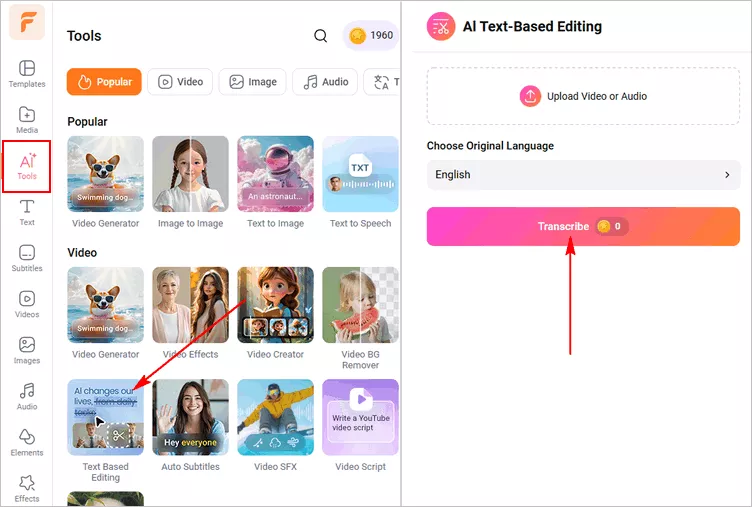
Edit Google Meet Recording - Transcribe
When it finished, you can manually delete any text content to cut your Google Meeting recording or click the AI Edit button to automatically get highlight moments from your video and remove filler words as needed. Once done, export the trimmed Google Meeting recording directly or add it to the editor for further editing.
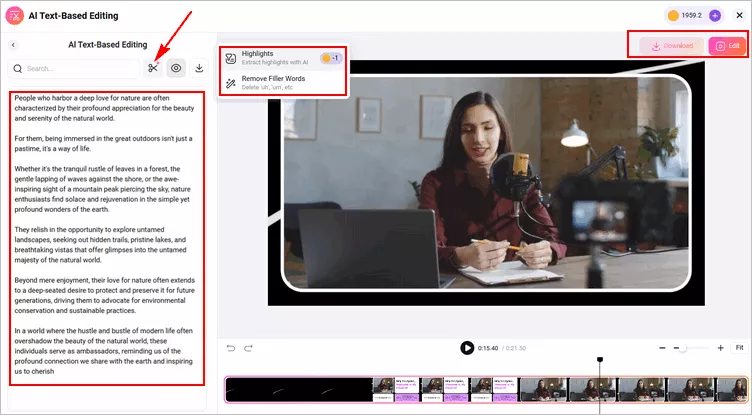
Edit Google Meet Recording - Cut with AI by Editing Text
Step 3 Transcribe Your Google Meet Recording with Subtitles
After you trimmed your recording, you can make further edits to make your video a more shareable snippet.
With FlexClip's auto subtitle generator, you can automatically transcribe your Google Meet recordings and generate subtitles with the click of a button, which is a great timesaver and help engage viewers.
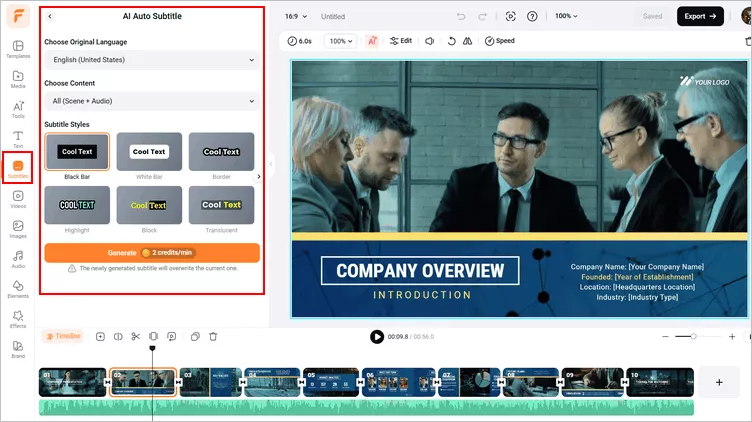
Edit Google Meet Recording - Auto Subtitle
Step 4 More Edits to Polish Your Google Meet Recording
FlexClip offers more features and effects to refine your recording. Here are a few editing you can try:
Add captions and annotations: Go to the Text tab to add any captions or annotations for adding explanations or clarifications to certain sections of the Google Meet recording video. You can choose from various fonts, sizes, and colors to make your text stand out.
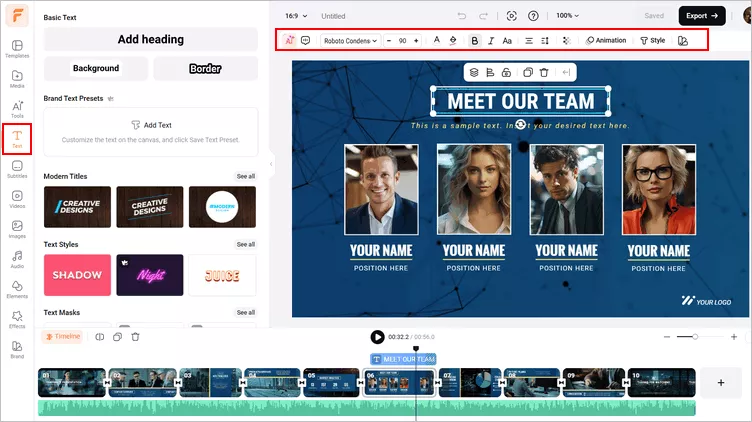
Edit Google Meet Recording - Edit Text
Add mosaic or blur effect - Need to protect speakers' privacy or hide confidential information in the meeting? You can go to the Elements library and search for a mosaic or blur effect to hide them.
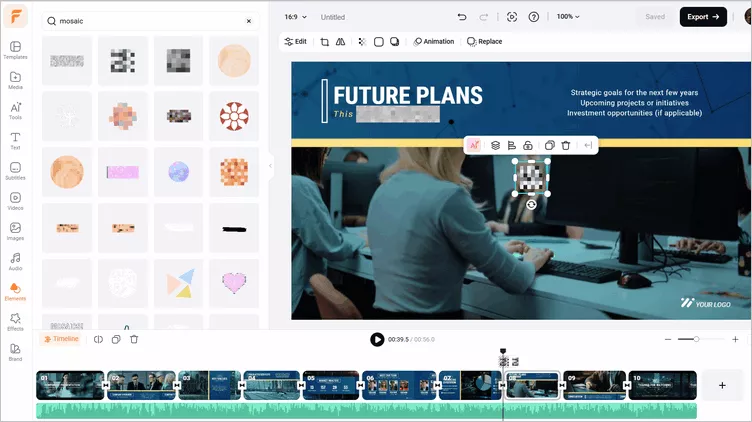
Edit Google Meet Recording - Add Mosaic
Add music and edit audio: You can also enhance your meeting recording by overlaying background music or adding voiceovers to explain certain parts of the video. FlexClip provides a vast library of copyright-free music and enables you to import your own audio files. Or, you can try its AI audio editing tool to reduce any noise to make the speaking clearer, use its text-to-speech tool to generate AI voice narration for your recording if necessary.
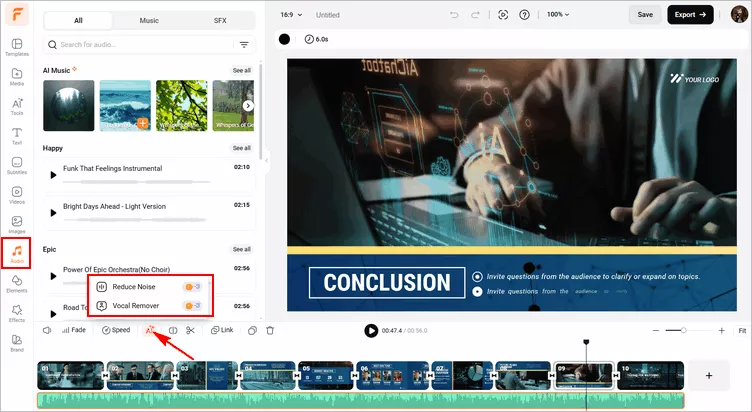
Edit Google Meet Recording - Edit Audio
Step 5 Download and Share Your Edited Google Meet Recording
Once you have finished editing your meeting recording, you can preview the whole video to ensure your changes look and sound as intended. Once you are satisfied, click on the "Export" button to save your edited recording. Here, you can also seamlessly share the edited meeting recording video with others via a link, or post to social media, like YouTube or TikTok.
Final Words
That's it! As you can see, trimming and editing a Google Meet recording using FlexClip opens up a world of possibilities to enhance the quality and impact of your video. So, give it a try and leverage the power of FlexClip to take your meeting recordings to the next level.




FlexClip AI Video Maker
Reach professional-quality videos faster with easy editing tools, templates, and smart AI.
Start Now for Free
Hot & Trending
-

Best Ways to Find Music in YouTube Videos
-

Instagram Story Video Quality Bad After Upload? Fix It!
-

How to Repost Video on TikTok & How to Remove TikTok Repost
-

Improve Video Quality Online: 3 AI Video Quality Enhancers You Can't Miss
-

4K Convert to HD 1080p without Watermark: Best 4k Video Converters
-

Best 8 Free Video Editors - No Download Required
-

Top 13 Birthday Video Makers with Music and Effects Free
-

How to Search Filters on TikTok & Use a Filter You See - TikTok Filter Guide




